Teaming Guide: Managing Subcontractors, Partners, and MRCLs

Purpose: This comprehensive guide helps you successfully add, manage, and verify all your Team Members (CTAs) and Meaningful Relationship Commitment Letters (MRCLs) — relationships with associated entities — within your company's reusable asset library.


Table of Contents

1. Add a New Team Member or MRCL

2. Assigning Partners to Specific Proposal Submissions

3. How to Unclaim Factors and Delete Documents

4. Updating Relationship Type or Forcing a SAM Refresh

5. Special Contracting Officer (CO) Exceptions for MRCLs      


Before You Start

Make sure you know the following essential facts before managing associated entities:

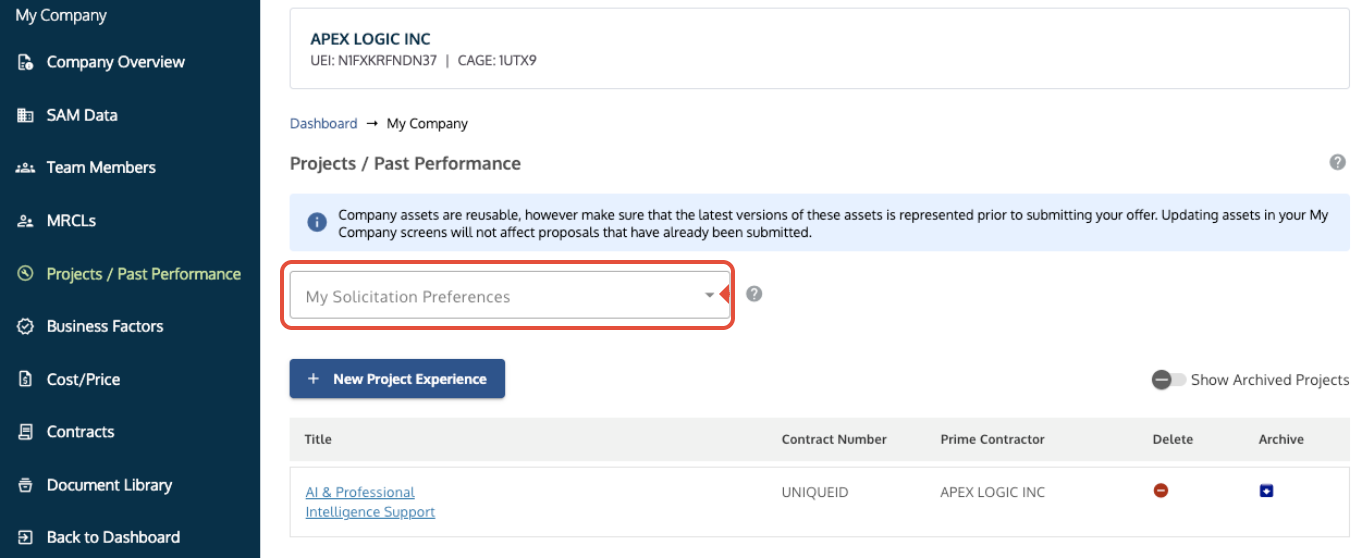
  • Solicitation Preference Filter: Always set the filter to your target solicitation (e.g., OASIS+) before adding or editing Team Members and MRCLs.
      
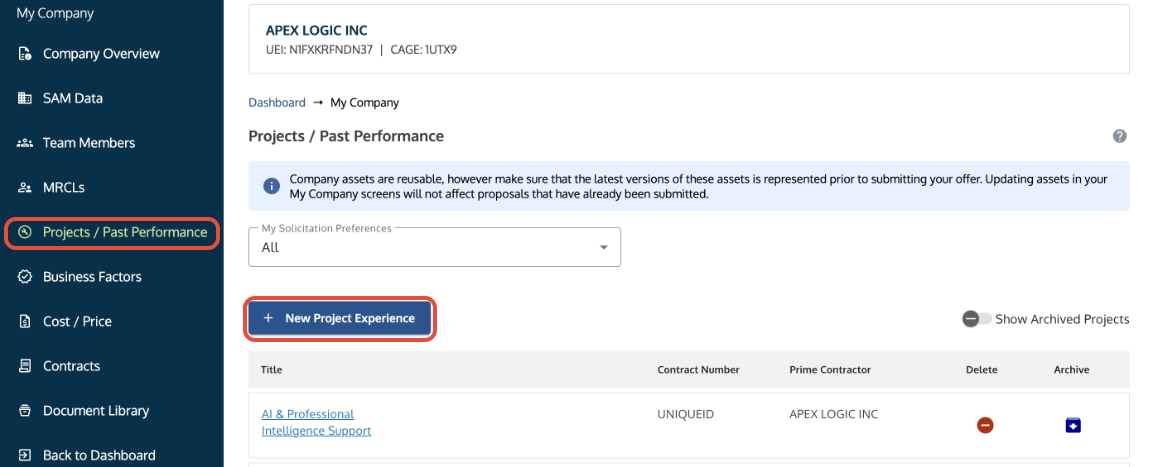
  • Two-Stage Teaming Workflow (Library vs. Submission Workspace): Just like projects, adding a partner under My Company → Team Members only stores their profile in your master asset repository. Adding a team member to My Company does not automatically claim them on a proposal. To use a partner for points or past performance, you must enter your specific SubmissionWorkspace on the Dashboard, navigate to Team Members / MRCLs, and explicitly assign them to that solicitation package.
      
  • Active SAM.gov Requirement: Associated entities must have an Active registration status in SAM.gov. Entities in "ID Assigned," "Pending," or "Inactive" status cannot be validated by Symphony.
      
  • SAM.gov Authority & Validation Banners: SAM.gov is always the official federal system of record for your business designations and socioeconomic types. As long as your partner’s record is active and accurate in SAM.gov, you can still proceed with submission even if an advisory validation banner flags a business type discrepancy.
      
  • SAM Data Immutability: Because SAM data is captured at the exact moment an entity is initially added, updating SAM.gov after a partner is already in Symphony will not automatically sync. You must briefly unlink and re-add the partner to trigger a fresh SAM API data pull.
      
  • Relationship Type Immutability: An entity's teaming relationship type (e.g., Subcontractor, JV Member, Mentor, Protégé) is locked upon creation so Symphony can assign appropriate folder directories and validation rules. If you selected the wrong type (such as choosing generic JV Member instead of Mentor or Protégé), you must unlink, delete, and re-add the partner with the correct classification.
     
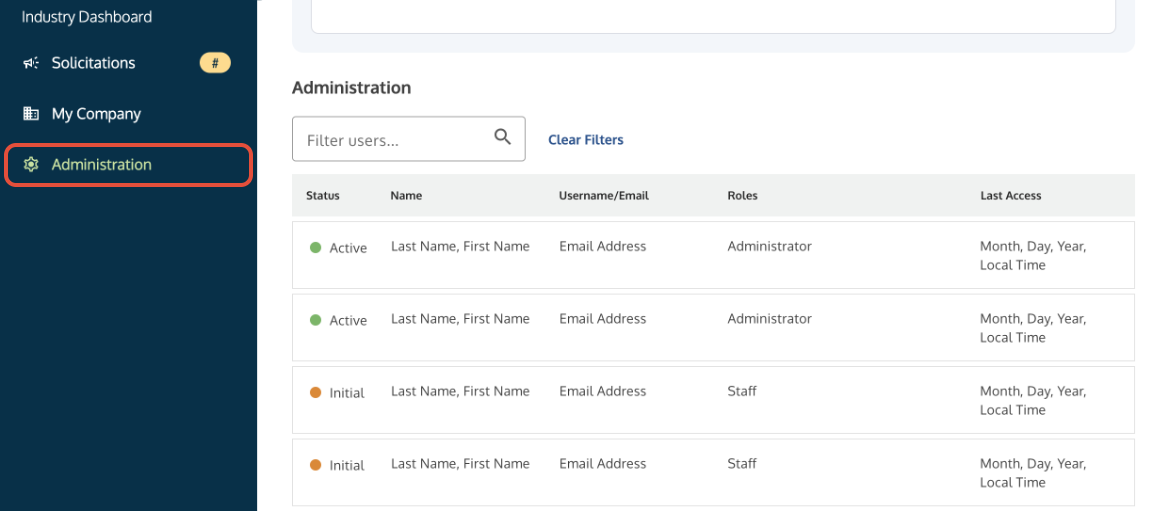
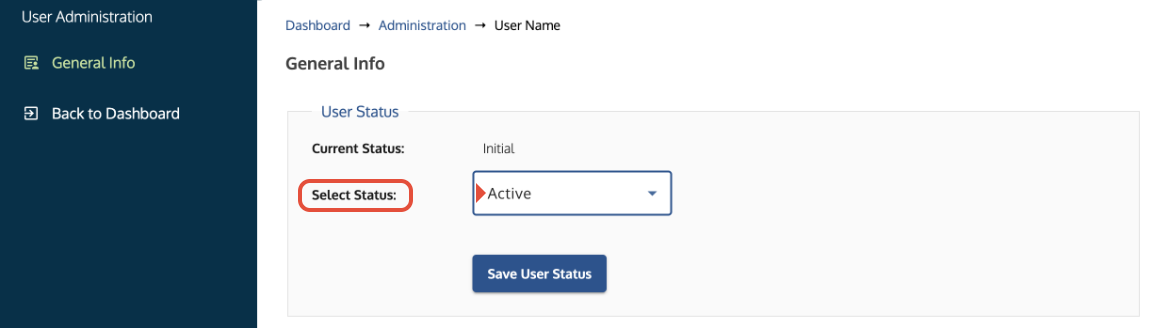
  • Internal Users vs. External Partners: The Team Members tab is strictly for managing external partner companies (subcontractors, Joint Venture members, CTA partners). Do not use this tab to add internal employees or colleagues. Internal staff are managed via self-registration and activated on the Administration tab.


Steps

1. Add a New Team Member or MRCL

Symphony uses a guided wizard to verify associated entities using System for Award Management (SAM.gov) data.

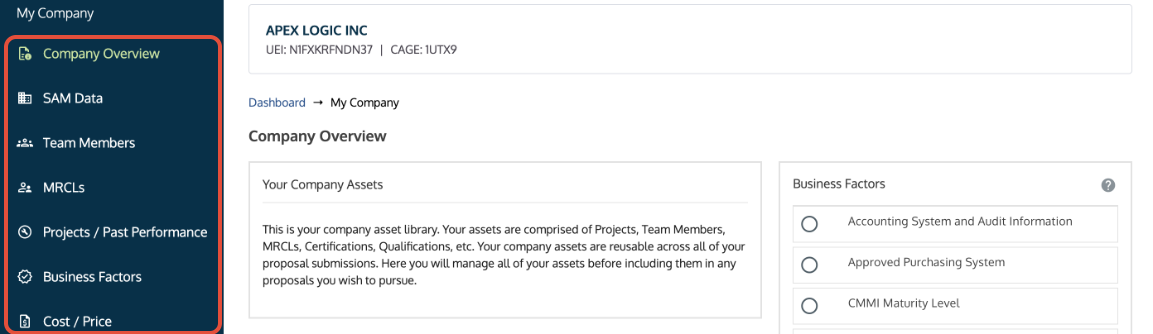
  1. Go to My Company, then select either the Team Members tab or the MRCLs tab.
      
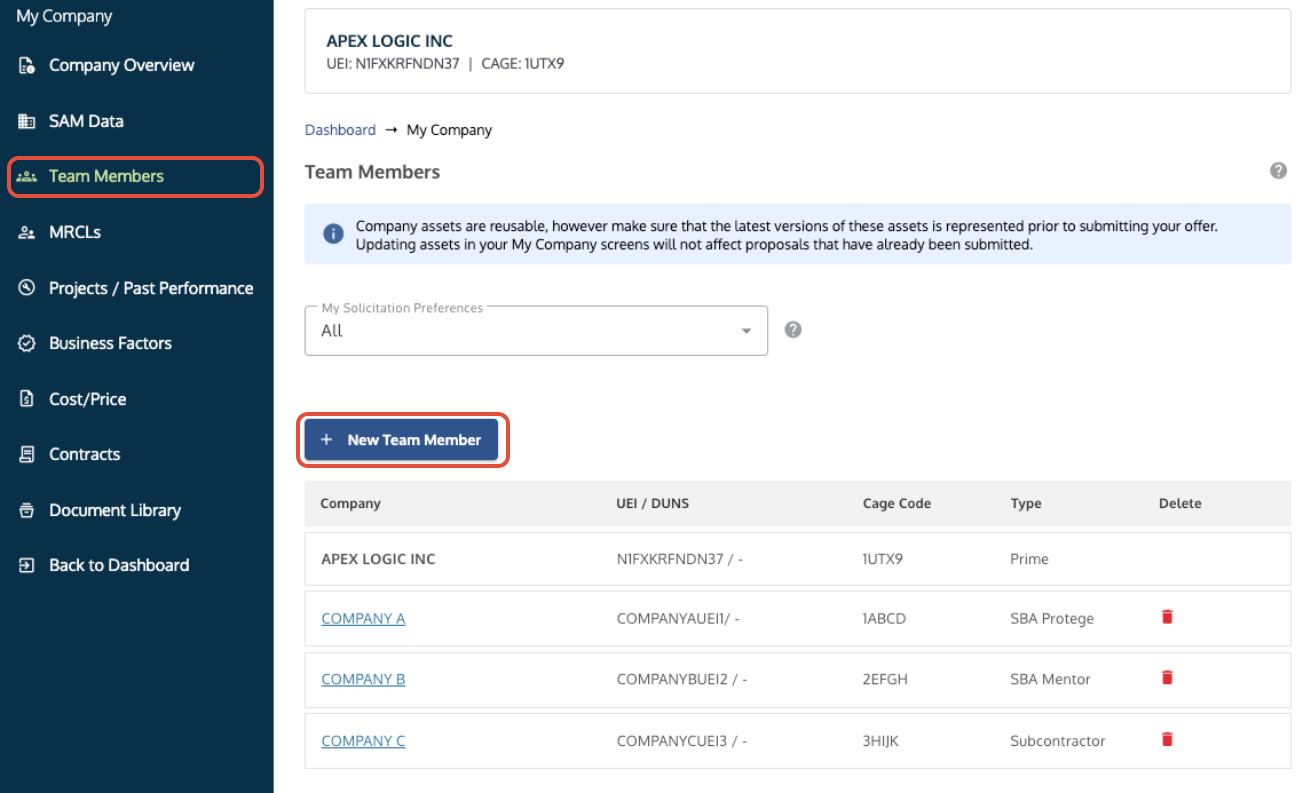
  2. Click + New Team Member or + New MRCL.


Team Member tab in My Company showing the +New Team Member button highlighted.

Team Member tab in My Company showing the +New Team Member button highlighted alongside the active list of associated entities displaying the Prime listed first.


Step 1: Select Type & Enter UEI: Select the exact relationship type from the dropdown (e.g., Subcontractor, JV Member, Mentor, Protégé) and enter the entity's 12-character SAM Unique Entity Identifier (UEI). (Note: For MRCLs, select the specific Meaningful Relationship type from the dropdown, such as Parent Company or Subsidiary).
  

Step 2: Confirm Company: Verify that the retrieved legal business name, address, and CAGE code match your partner's official record.
  

Step 3: Claim Team Member Business Factors: Select and claim any applicable company-level certifications or systems contributed by the partner.
  

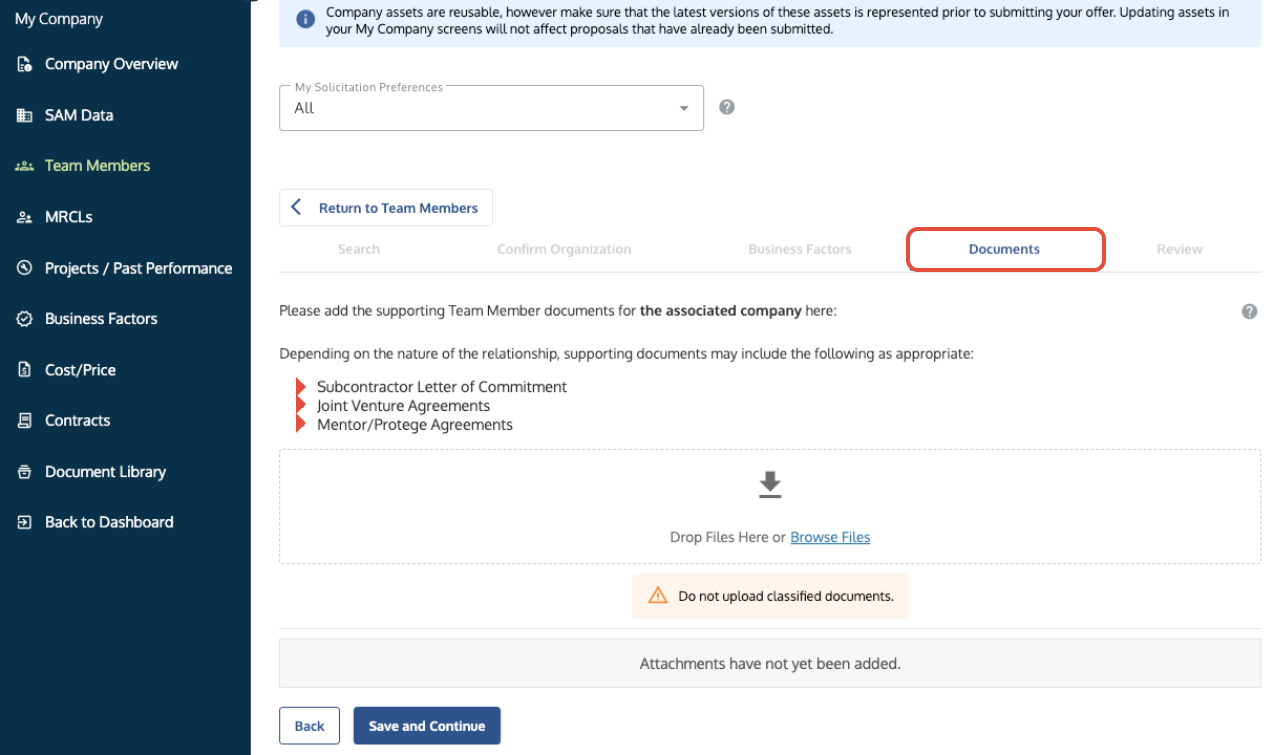
Step 4: Upload Teaming Agreements: Attach the required commitment letter or agreement under the Documents tab.

Team Member Documents tab showing the location for uploading Partner Agreement documentation.Team Member Documents tab showing the location for uploading Partner Agreement documentation.


Step 5: Review & Save: Review all entries and click Save and Complete to add the partner to your master asset library. 


Understanding the "Prime" Listing in Team Members
​

You will notice that your own company (the Prime Contractor) is listed at the top of the Team Members roster with Type: Prime.

  • ​​​Why it appears: Symphony lists the Prime first so you can see the relationship alongside your teaming partners in one centralized area. (This Prime listing only appears on the Team Members tab; it is not listed on the MRCLs tab).
      
  • Scorecard Indicator Difference: On the master Company Overview page, only the Prime Contractor's Business Factors display as full-shaded circles. Partner business factors do not populate as shaded circles on the main company overview—they only display on the Proposal Overview page inside an active submission workspace as half-shaded circles once assigned to a bid.


2. Assigning Partners to Specific Proposal Submissions

Adding a partner to My Company makes them available, but you must explicitly add them to each specific proposal where they are participating.
  

  1. Go to your Dashboard and select the active Submission Workspace for your target solicitation (e.g., OASIS+ Small Business).
      
  2. Navigate to the Team Members / MRCLs tab within the proposal submission menu.
      
  3. Use the Team Member /MRCL dropdown and select the partner from your master library roster.
      
  4. Verify that their attached teaming agreements and business factor claims populate on your submission Score Card.


3. How to Unclaim Factors and Delete Documents

To manage or delete uploaded commitment documents and business factor attachments, follow this step-by-step workflow:
  

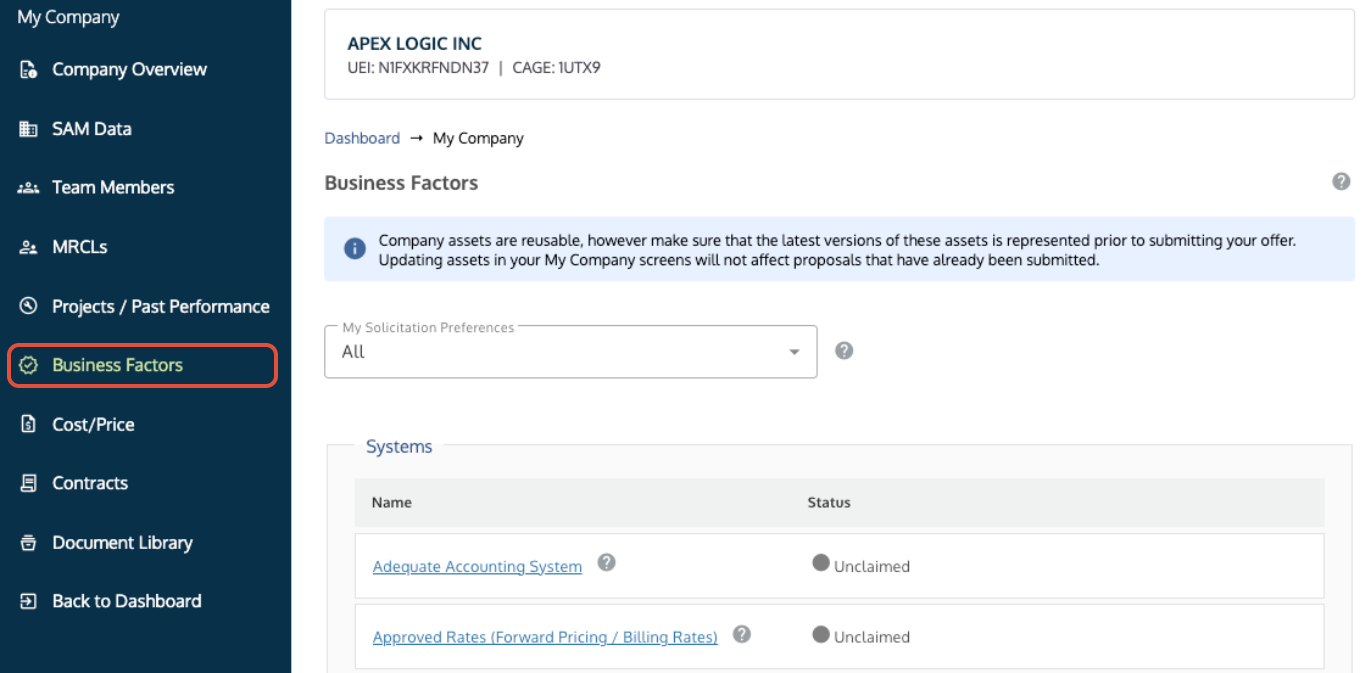
  1. Go to My Company and select the correct Business Factors tab for your company or Team Members.
      
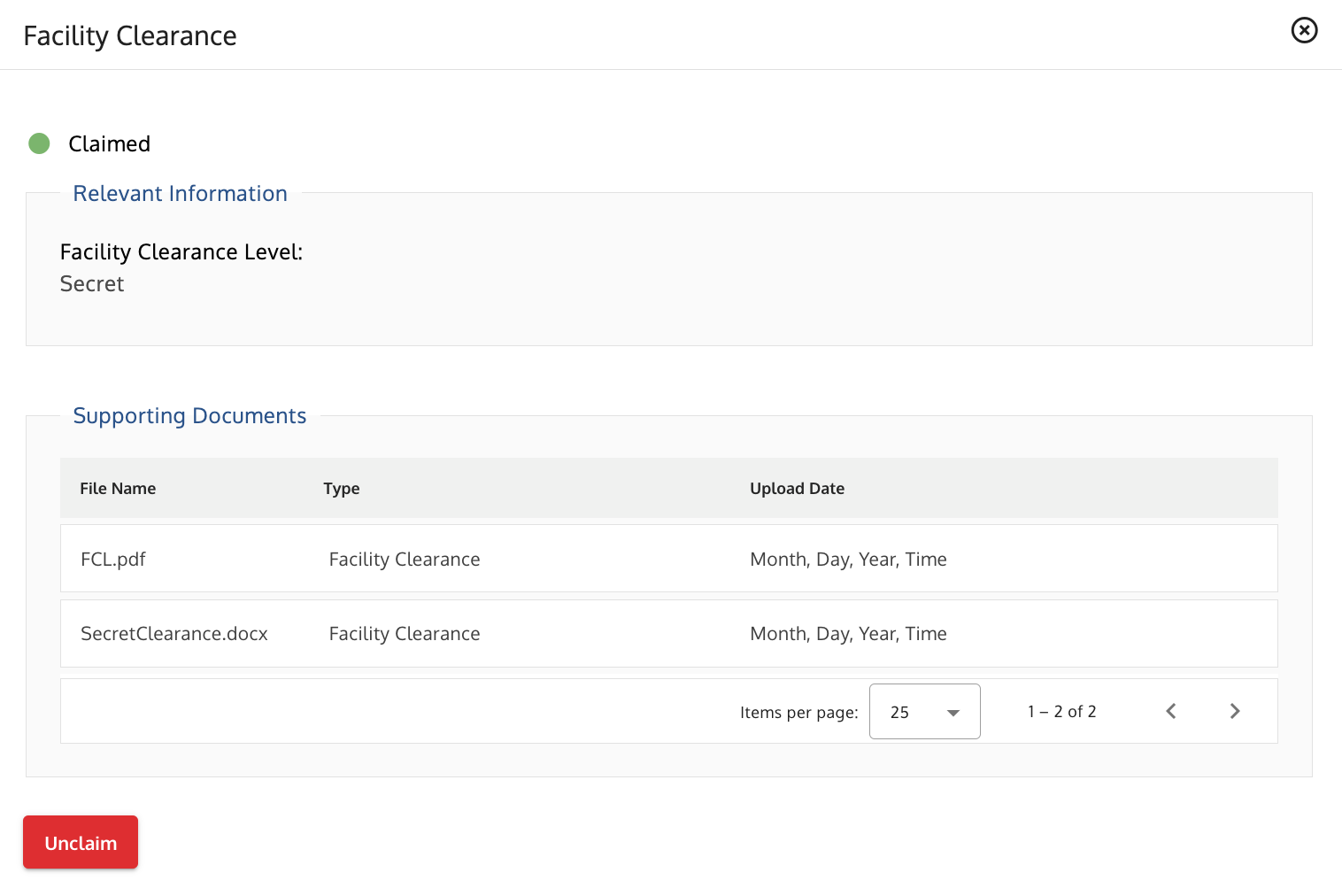
  2. Select the specific Business Factor name and click the Unclaim button.
      
  3. Scroll below the file upload section to view the attached documents.
      
  4. Identify Trashcan Colors:
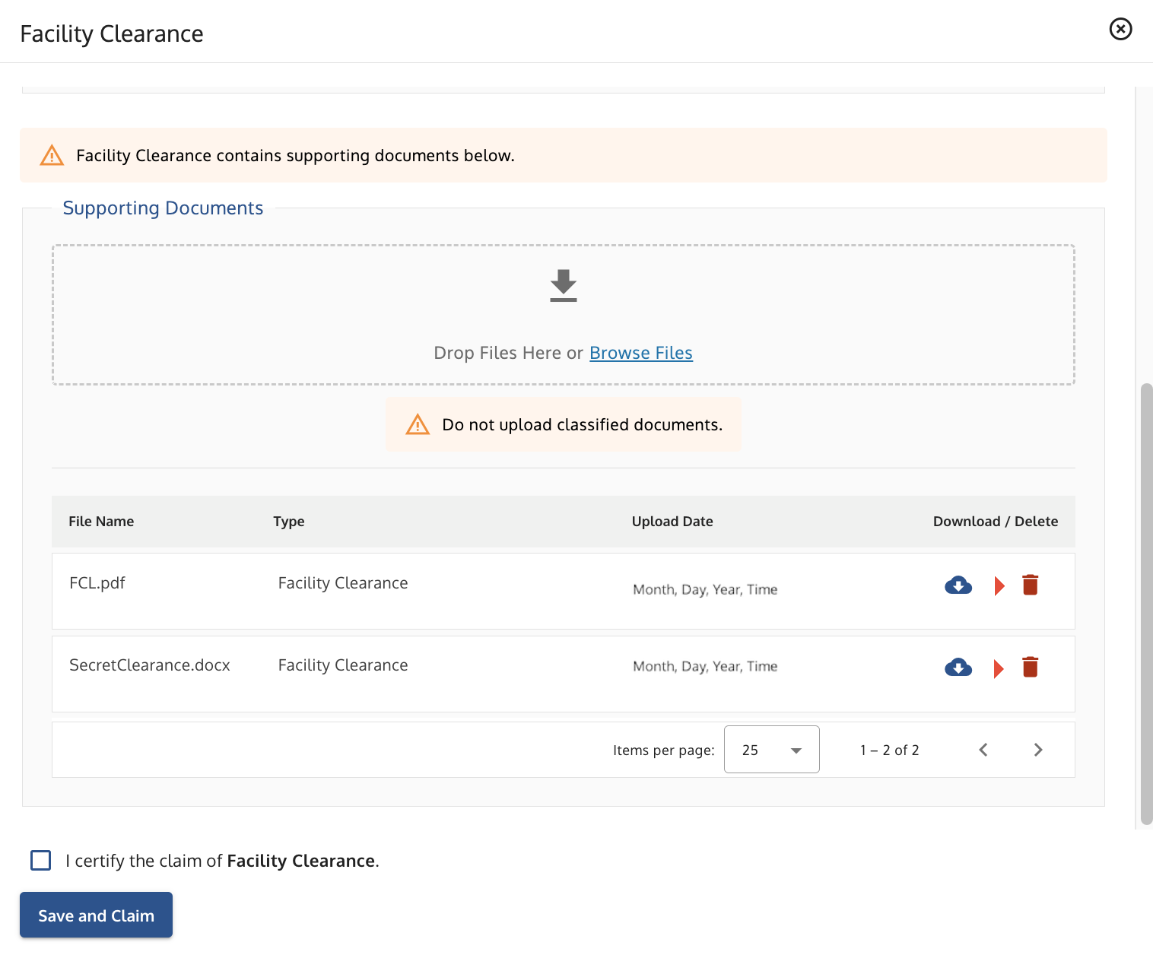
    • Red Trashcan: Use the red trashcan icon to delete the document. Red icons indicate that the file was originally uploaded in this specific factor window.
        
    • Grey Trashcan: Grey trashcans are displayed on the Documents tab to denote that they are disabled because the file was originally uploaded in another location or asset tab. To delete a file with a grey trashcan, you must navigate back to the original source tab where it was first attached.
        
  5. Replace Files: If replacing a document, upload the new file directly into the upload box.
      
  6. Save Your Changes: Click Certify and Claim to save your updates—OR click the close (X) button at the top of the window to keep the factor unclaimed.


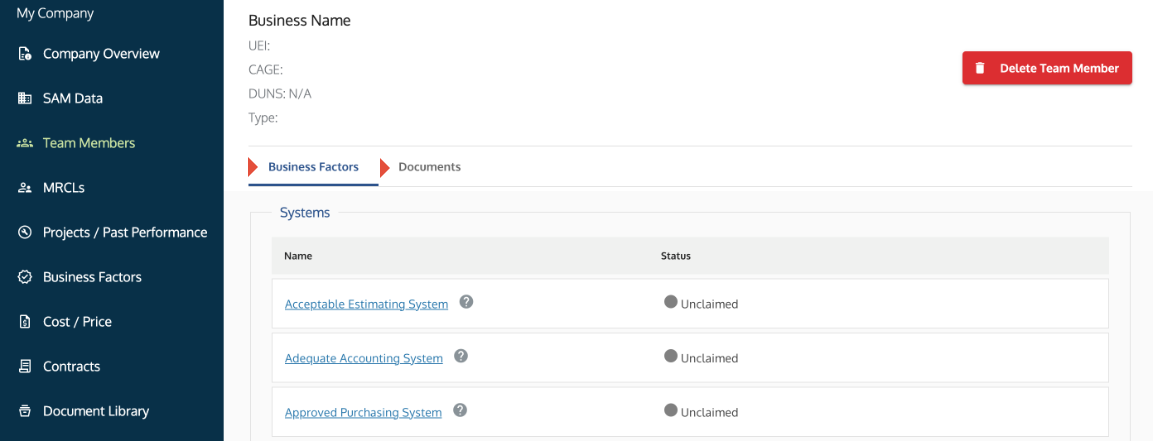
Team Member profile showing the Business Factors section and Documents tab.

Team Member profile showing the Business Factors section and Documents tab.


4. Updating Relationship Type or Forcing a SAM Refresh 

Because SAM data and relationship classifications are locked upon entity creation, updating locked details requires a quick Unlink → Re-Add → Re-Link sequence:

  • Phase 1: Clear Submission Links: Go to Dashboard → Submissions → Team Members and remove the partner from your active proposal draft.
      
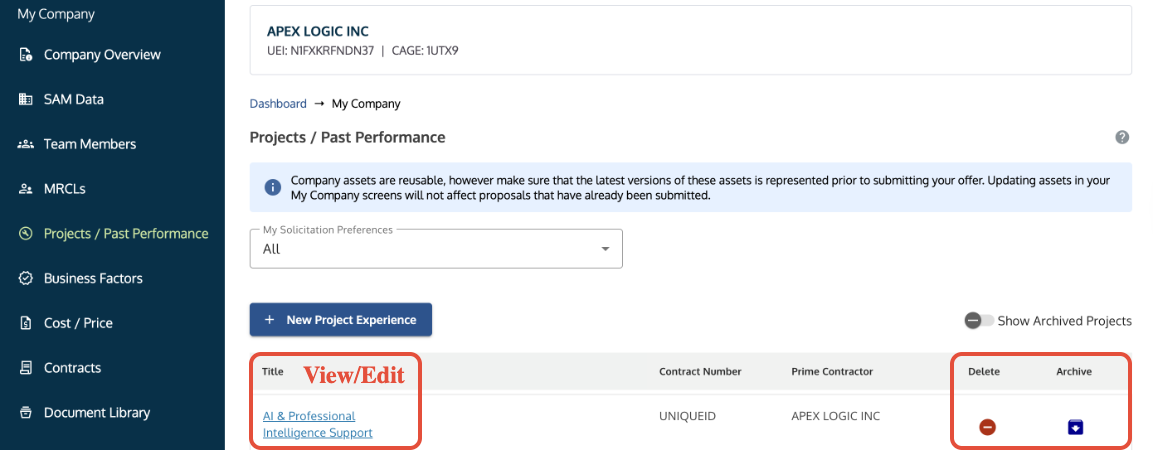
  • Phase 2: Clear Library Dependencies: Go to My Company → Projects and temporarily set "Who performed this work?" to the Prime for any projects linked to this partner. Under My Company → Team Members, unclaim their Business Factors and delete their attached documents using the red trashcans.
      
  • Phase 3: Delete & Re-Add Entity: Click Delete Team Member. Click + New Team Member, enter their 12-character UEI, and select the correct relationship type (Mentor, Protégé, Subcontractor, etc.). (Re-entering the UEI forces Symphony to pull their live, updated SAM.gov profile).
      
  • Phase 4: Re-Link Workspace Claims: Re-claim their Business Factors, re-upload their Teaming Agreements, re-assign their Projects, and add them back to your active proposal submission.


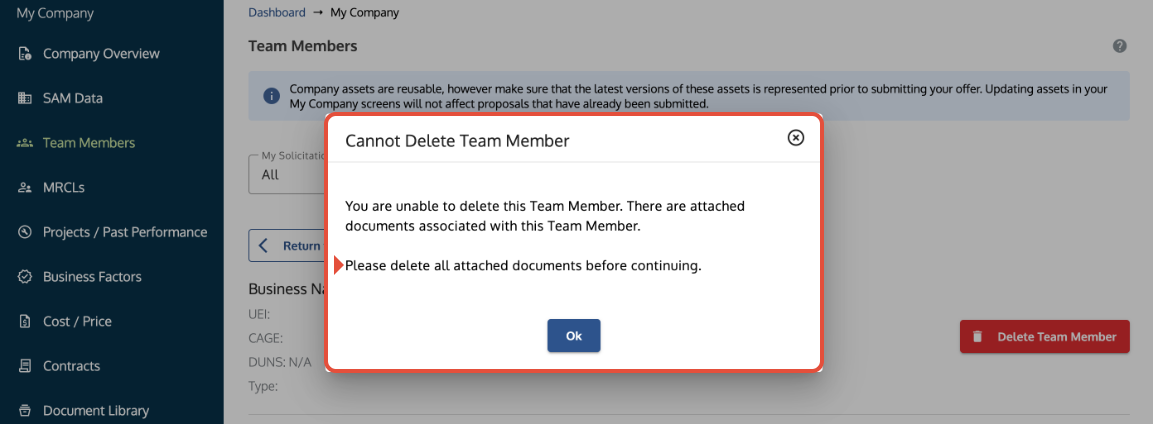
Message box directing the user to remove all documents before deleting a Team Member.

Message box directing the user to remove all documents before deleting a Team Member.


5. Special Contracting Officer (CO) Exceptions for MRCLs

  • Inactive MRCL Entities (Unable to Obtain SAM Registration): If claiming past performance from an inactive or acquired corporate entity that can no longer obtain SAM.gov registration, you cannot add them in the MRCL feature. Instead, submit the project and commitment documentation directly under your offering entity's Projects / Past Performance section, and upload the commitment letter as a cover letter in Submission Documents IF directed by solicitation guidelines.
      
  • Pending SAM Registration at Deadline: If an active MRCL entity's SAM registration is still pending at proposal submission, upload their commitment letter and proof of pending SAM registration directly under the Prime's Projects / Past Performance or Business Factors section, and attach a copy in Submission Documents.


Troubleshooting

Issue

Root Cause

Fix

Partner is in My Company, but not showing on proposal Scorecard.
The partner was added to the master asset library but not assigned to the submission workspace.
Open your active proposal submission workspace on the Dashboard, navigate to Team Members and select the partner from your library.
​
"Cannot Delete Team Member" error message appears.
The entity still has attached documents or is linked to an active Business Factor or Project claim.
Follow the 4-Phase Unlinking Sequence above: remove the entity from active submissions on the Dashboard first, unclaim business factors, delete documents via red trashcans, and re-assign projects before deleting.
​

You cannot delete a document. The Trashcan icon next to a document is greyed out and cannot be clicked.

The file was uploaded in another location or tab and is only displaying here as a view-only reference.
​Go back to the original source tab (e.g., ​Projects, or Business Factors) where the file was first attached to delete or replace it.
​
Why is our Prime company listed under Team Members?
Symphony includes the Prime at the top of the Team Members list (Type: Prime) so you can manage all workspace factors in one area.
​
This is expected system behavior. Note that only the Prime's factors show as full-shaded circles on the main Company Overview.
​
I see a validation warning regarding my partner's SAM business type/designation.
Advisory validation message.
SAM.gov is the official legal system of record. As long as your partner's record is active and correct in SAM.gov, you can ignore advisory warnings and proceed with submission.
​

You need to update an associated entity's SAM data or relationship type.

SAM.gov details and relationship classifications are locked once an entity is created.
​Follow the 4-Phase Unlinking Sequence above to delete and re-add the Team Member record to force a fresh SAM.gov data pull or select the correct relationship type.
​

​How do I add an internal colleague or proposal writer to our account?

Attempting to use My Company ​→ Team Members to invite internal staff.
​Do not use the Team Members tab. Colleagues must self-register on the portal landing page using your company's UEI and CAGE code, after which an Administrator activates them on the Administration tab.
​


Was this article helpful?
That’s Great!

Thank you for your feedback

Sorry! We couldn't be helpful

Thank you for your feedback

Let us know how can we improve this article!

Select at least one of the reasons

Feedback sent

We appreciate your effort and will try to fix the article