ASTRO Contract Holder Supplement (Administrative Tasks)
Purpose: This supplemental guide helps authorized Contract Holders on the ASTRO contract vehicle manage employee turnover, maintain correct contract Points of Contact (POCs), and complete necessary contract modifications.
Table of Contents
2. Maintain Contract-Specific Points of Contact (POCs)
3. Initiate Contract Modifications
4. Review and Acknowledge Modifications
Before You Start
Make sure you know the following crucial rules:
- Access: This system is only available for prime contractors who have been awarded an ASTRO contract.
- Subcontracting Opportunity: The average task order on ASTRO exceeds $800M with upwards of 15 subcontractors on each task order.
- Teaming: If you wish to participate by subcontracting, use the AAS GSA ASTRO website to see who the contract holders are on each pool and obtain points of contact: https://aas.gsa.gov/astro.
- Administrative: The Contract Holder must ensure all company users are registered and have the correct roles.
Steps
1. Manage User Access
As an Administrator, you are responsible for activating new users and assigning permissions.
- Register New Users: New employees must self-register by following the Register Your Symphony Business Account guide.
- Activate Accounts: Go to the Administration link to change the new user's status from Initial to Active.
- Assign Roles: Assign Administrator or Program Manager roles to users who require submission authority.
- Deactivate Users: Use the Delete status in the Administration link to remove access for employees who leave the company.
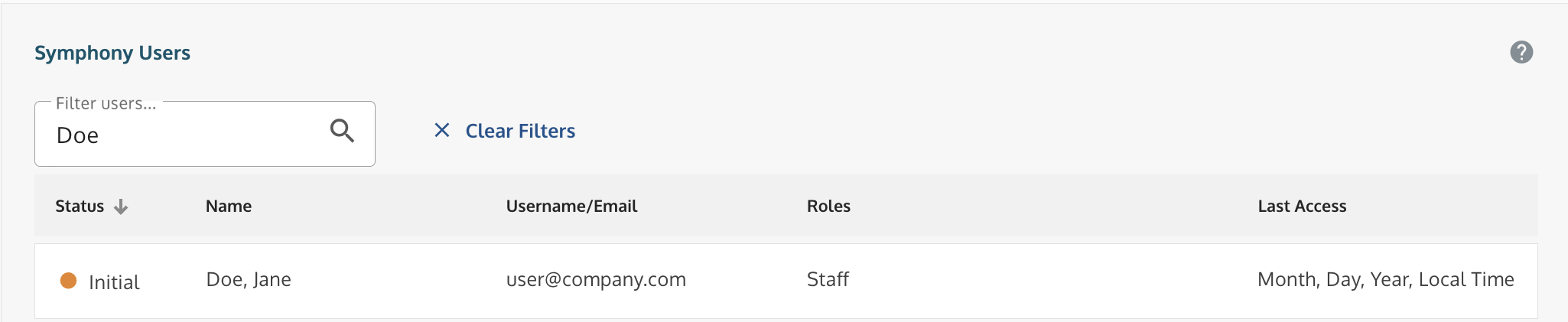 Administration screen showing user list and options to change user status.
2. Maintain Contract-Specific Points of Contact (POCs)
The Contract Managers and Program Managers must be updated when employees change roles.
- Go to My Company → Contracts → Contract Number link.
- Select the Points of Contact (POC) tab.
- Update Roles: Choose the registered user to assign to the Contract Manager and Program Manager roles.
- Notification Email: Verify that the Distribution email address (a company mailing list) is current and active to ensure notifications are received.
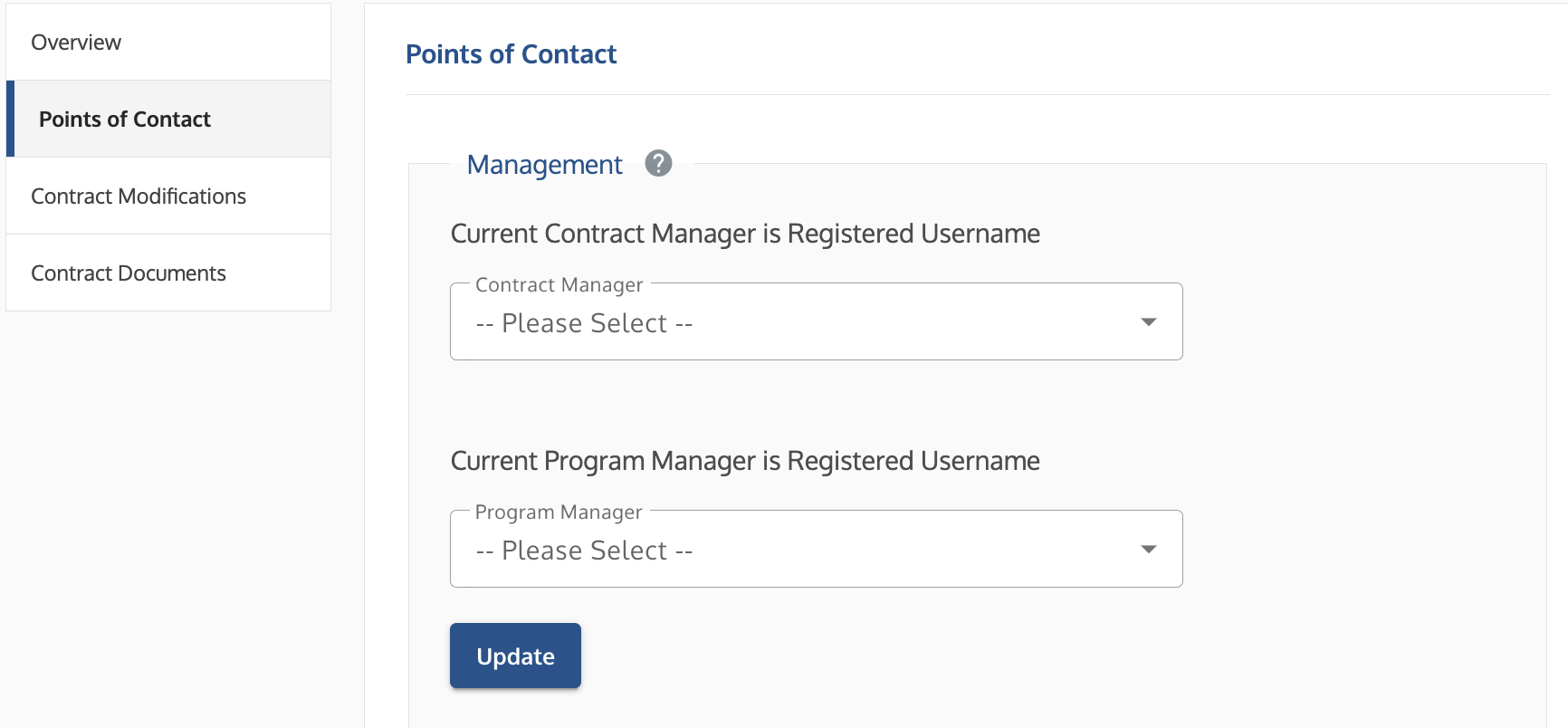 Points of Contact screen showing dropdown menus for assigning Contract Manager and Program Manager roles.
3. Initiate Contract Modifications
Only Administrators can start a contract modification for your company.
- Go to My Company → Contracts → Contract Number link.
- Select the Contract Modifications tab.
- Click Start Contract Modification and choose the specific modification type (e.g., Name Change, Address Change, Option Exercise).
- Follow the on-screen prompts to verify the information against SAM.gov and complete the submission.
 Contract Modifications tab showing the option to start a modification.
4. Review and Acknowledge Modifications
If the Program Office initiates a modification, you must review and acknowledge the change.
- Go to the Contract Tasks tab on the Dashboard.
- Click the row to view the modification and use the Acknowledge/Accept button when available.
Note: The final digital signature is performed by the Program Office after you approve the change.
Troubleshooting
| Issue | Fix |
New user cannot sign in (Inactive Status). | You must go to the Administration link and change their status from Initial to Active. |
Cannot access the Contract Modifications tab. | Only an Administrator can access this feature. Ensure your account has Administrator permissions. |
New POCs are not receiving RFP notifications. | Verify the new POC is assigned the role and that the Distribution email address in the Contracts tab is current and validated. |
Related Articles / Links
- Register Your Symphony Business Account—Guide on how employees should register
- Understand Your Account Roles and Permissions—Guide on role assignment and deletion rules
- Manage Orders, Q&A, and Bids (Contract Holders)—Guide to the contract performance workflow
- Submit a Ticket to the Symphony Help Desk—For technical support
Was this article helpful?
That’s Great!
Thank you for your feedback
Sorry! We couldn't be helpful
Thank you for your feedback
Feedback sent
We appreciate your effort and will try to fix the article